Help Center
Paisaverse Help Center
Your Indian portfolio, understood everywhere.
June 2026 · Paisaverse Private Ltd.
Section
What is Paisaverse?
Paisaverse is a portfolio tracker built for people who own Indian investments but live — or think — in another currency. Most portfolio tools show returns in rupees. If you live in Dubai, Paris, or Frankfurt, that number doesn't tell you what your wealth is actually doing.
Paisaverse tracks each purchase at the exchange rate when your money entered India, then separates what the stock did from what the rupee did. You see both, clearly.
Under the hood, the engine:
- Processes every holding at lot level with FIFO, exactly as Indian tax law requires
- Applies Indian corporate actions (splits, bonuses, mergers, demergers, dividends) automatically
- Computes XIRR in your home and trading currency
- Applies the correct DTAA treaty to your tax position, based on where you live and which account type each trade sat in
Computational tools, not tax advice. Paisaverse outputs are a strong working starting point. For personal tax decisions, please engage a qualified CA in India and a tax advisor in your country of residence.
Who is it for?
| You are | What Paisaverse solves |
|---|---|
| NRI/ OCI (Non-Resident Indian/ Overseas Citizen of India) | See your true return in your home currency (EUR, AED, GBP, USD), computed from the actual rate your money entered India at — not today's rate. Plus DTAA treaty tax view and TDS tracking against NRE/NRO accounts. |
| RNOR (Returning resident) | Mobility Timeline tracks your residency history (You can edit it manually). The tax view adjusts as your status transitions to Resident. |
| Indian resident with global exposure | Returns stay in INR, then benchmark any holding through a USD or EUR lens to see how much of a gain is the stock versus the rupee — so you can compare honestly against global investments. |
What's supported today
Paisaverse currently supports equity and ETFs on NSE and BSE.
| In scope | Not yet supported |
|---|---|
| NSE / BSE equity | Mutual funds |
| ETFs | Bonds, NCDs, SGBs |
| IPO allotments, buybacks, rights entitlements (manual entry) | International equities |
| Corporate actions: split, bonus, merger, demerger, dividend | Real estate, crypto, PMS/AIF |
How Paisaverse compares
Global portfolio trackers handle multi-currency, but few go deep on FX — most convert your portfolio at today's rate and stop there. Paisaverse decomposes every position into Price Impact and FX Impact, maintains that decomposition at the portfolio level, and computes home-currency XIRR from the actual rate of each cash flow — not a single current-rate conversion. And global tools miss the Indian accounting nuances entirely: per-demat FIFO, Indian corporate actions, TDS, DTAA treaties.
Indian trackers get the India side right, but offer minimal outside view.
Paisaverse is built to hold its own on both fronts: India-native accounting as rigorous as the established Indian tools, and FX and cross-border analytics that go deeper than most global ones.
| Global trackers | Indian trackers | Paisaverse | |
|---|---|---|---|
| Indian accounting (per-demat FIFO, corporate actions, TDS) | Limited | Strong | Strong |
| FX impact decomposition, lot level to portfolio level | Rare | — | Core feature |
| Home-currency XIRR from actual funding rates, not today's rate | Rare | Minimal | Core feature |
| DTAA treaty tax view | — | Minimal | Core feature |
| One tool, full visibility — no stitching layers together | — | — | The goal |
Access to asset classes has already increased — and it keeps evolving at record speed. The systems that track your performance and tax need to talk to each other as effectively as that access has grown. That's why Paisaverse is being built as a wealth intelligence layer, not another tool: data flowing in from many places, full visibility in one — nothing stitched together.
Section
Getting Started
Getting access
- Platform: Web app. A mobile app is in development.
- Sign up: Email + password
- Pricing: The Essential plan is available now at beta pricing. Your 14-day free trial starts when you sign up — no separate step. All features are on Essential during the beta; as Paisaverse grows, the plan structure may evolve and some features may later be reserved for higher plans.
Beta user benefit. Subscribe during the beta and get the Higher Tier plan free when it launches — one month on the monthly plan, three months on the yearly plan.
Setup
Setup takes under 10 minutes. Follow the five steps in order — each one builds on the previous.
Lock your home currency first. Once you upload trades or record remittances, your home currency is locked. Set it in Settings → Currency before doing anything else.
Step 1 — Configure Settings
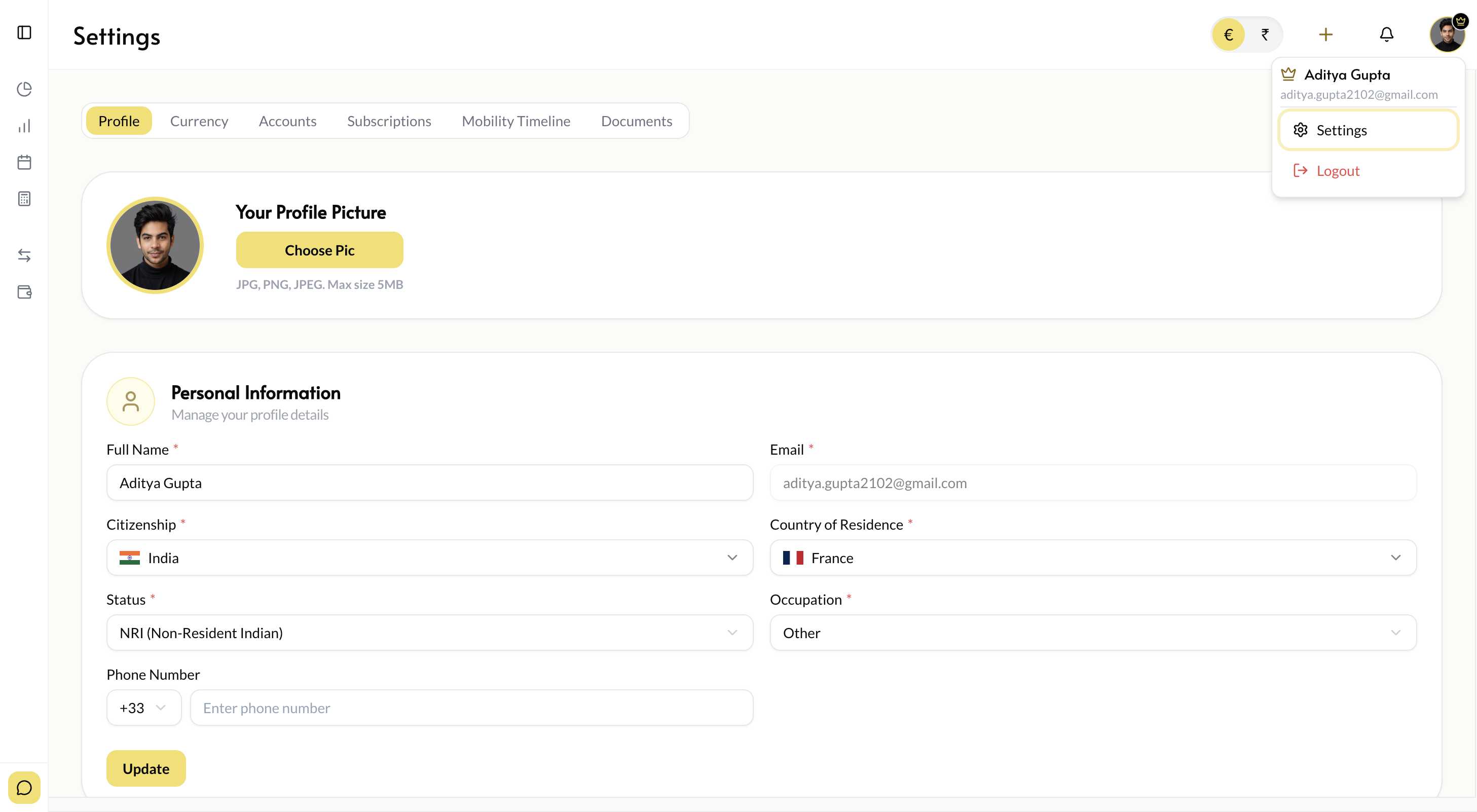
Settings has six sub-tabs:
| Sub-tab | What to do |
|---|---|
| Profile | Review your name, email, and optionally set your residency status: Resident, NRI, or RNOR. Your residence country sets the default home currency. |
| Currency | Set your home currency — INR, EUR, AED, GBP, or USD — even if it differs from your residence country. Every output is shown in this currency alongside the trading currency. |
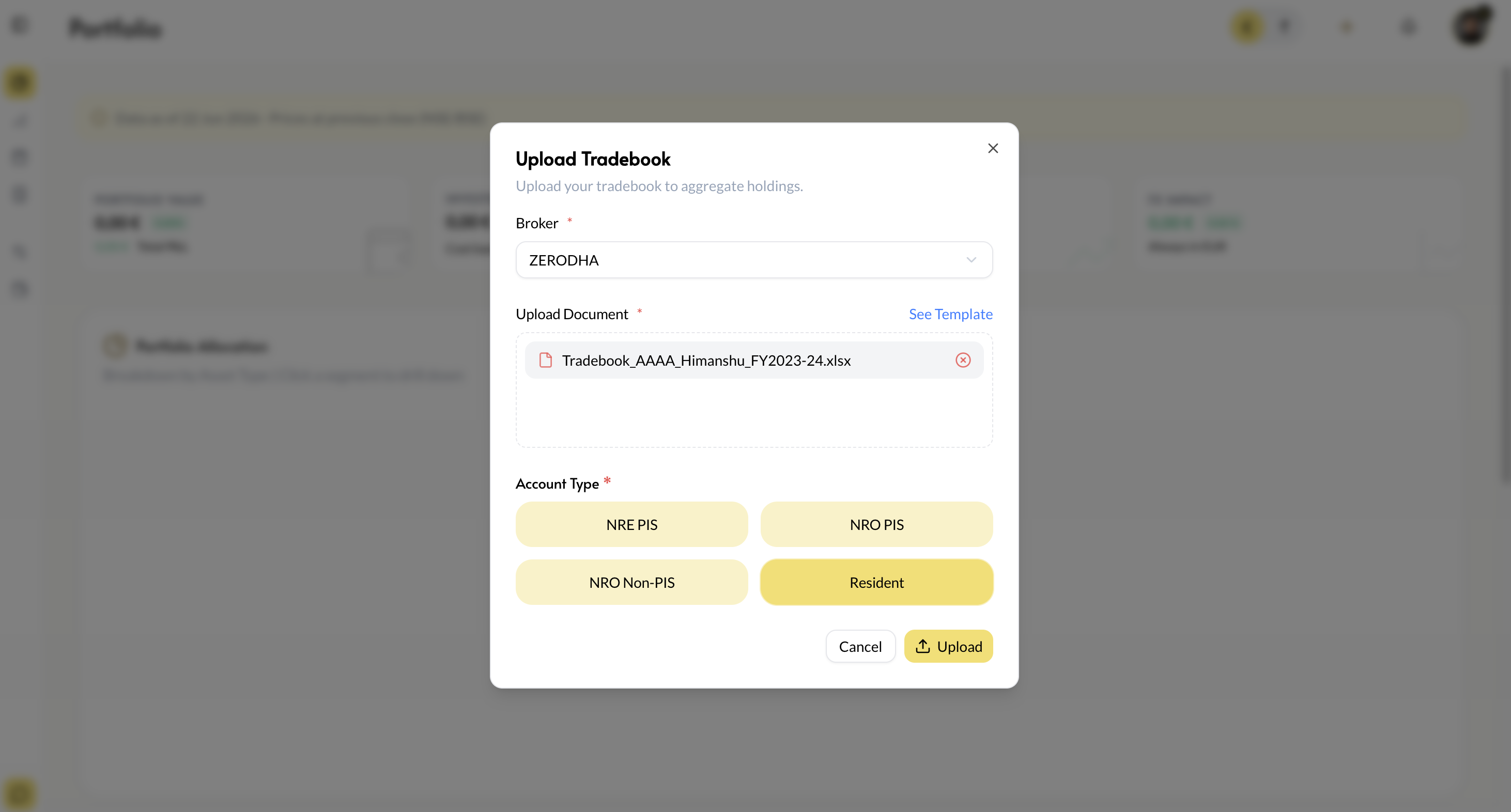
| Accounts | Your Accounts appear here once you upload a tradebook — each saved by broker and account type: Resident, NRE-PIS, NRO-PIS, or NRO-NON-PIS (see Step 2). You can also delete an Account from here — this permanently removes all data related to it. |
| Subscription | Your 14-day free trial starts when you sign up. See what's included and manage your plan and billing here. After the trial, continue on beta pricing. |
| Mobility Timeline | Record where you've lived and which tax treaty applies per period (see Step 5). |
| Documents | Optional storage for documents you want to keep alongside your portfolio. |

Step 2 — Know your demat account types
Paisaverse doesn't create demat accounts — when you upload a tradebook, it saves the account by broker and account type, and this combination is called an Account in Paisaverse. After the upload, you assign the account type. The type determines which TDS rate applies and which treaty logic runs on trades from that Account — so set it correctly.
| Account type | What it means |
|---|---|
| NRE-PIS | Non-Resident External, linked to the Portfolio Investment Scheme. Fully repatriable. |
| NRO-PIS | Non-Resident Ordinary, linked to PIS. Repatriation limits apply. |
| NRO-NON-PIS | Non-Resident Ordinary, outside PIS. Used for off-market and non-PIS-eligible investments. |
| Resident | A regular demat account for Indian tax residents. |
You can have more than one account. If you hold the same stock in two accounts, each account keeps its own separate FIFO queue — see .

Step 3 — Upload your trades
- From the top menu of any screen, tap + → Upload Trades. Currently supported: Zerodha Tradebook, with more brokers being added. Select your broker and upload the file.
- Using a different broker? From the same screen, download the Paisaverse Excel template, fill in your trades, and upload it. The template works for any broker.
- Add individual or off-market entries. The add menu on the Trades tab has Add Trades (manual entries) and Add Off Market Trades — IPO allotments, buybacks, and rights entitlements don't appear in broker tradebooks, so enter each one individually there.
Order doesn't matter. Uploading chronologically is fine, but it's not necessary — when you run Reset & Replay (Step 4), Paisaverse sorts every trade into correct chronological order and rebuilds your FIFO lot history automatically.
Step 4 — Run Reset & Replay
Once all trades are in, run Reset & Replay from the Trades tab. This rebuilds your entire portfolio from scratch — every trade and corporate action reprocessed in correct chronological order. See for how it works and when to use it.
Step 5 — Set your Mobility Timeline
The Mobility Timeline records where you've lived over time. Each row captures: Residence Country, Start Date, End Date, Tax Treaty Country, Treaty Start, Treaty End. Add a new row each time you move.
You enter and maintain the timeline yourself — Paisaverse uses it to process your tax view but doesn't verify any of it, and you can change it anytime. You can also run scenarios: what if I had lived there, and what would I have paid? More features will be announced shortly.
The Tax Overview tab uses this timeline to apply the correct DTAA treaty and residence-country tax rules for each period. If the timeline is incomplete, your tax view will be incomplete. The dual-country tax output is shown only for NRI account types (NRE-PIS, NRO-PIS, NRO-NON-PIS); Resident accounts don't use the Mobility Timeline.
Treaty selection is your responsibility. The Tax Treaty Country field is separate from Residence Country — Paisaverse does not auto-select or verify which treaty applies to you. If you're unsure, consult a qualified tax advisor before filing.
Section
Core Concepts
Account types & TDS
The account type on each demat account is the single most important setting for your tax view. Paisaverse uses it to determine which TDS rate applies to each sell (STCG and LTCG are treated separately), and whether DTAA treaty relief is available.
Paisaverse applies TDS rates based on the commonly used method for each account type. Your actual deducted TDS can differ — broker practice and individual circumstances vary. That's why every rate we apply is shown in the Tax Ledger export: you or your CA can compare our applied rates against the TDS actually deducted, line by line.
Trade lots & FIFO
Every buy creates a trade lot — a record of the shares purchased, the price paid, the date, and the account. When you sell, Paisaverse consumes lots in strict chronological order (FIFO) within each demat account, as required by Indian tax law.
The holding period for each lot runs from its acquisition date. For lots created by corporate actions — bonus shares, demerger children, merger exchanges — the acquisition date is determined as per Indian income tax rules, not the corporate action date. This matters for the 12-month STCG/LTCG boundary under Section 2(42A).
FIFO is per demat account, not across accounts. If you hold the same stock in an NRE-PIS account and an NRO account, each has its own FIFO queue. Lots from different accounts are never mixed.
Returns & XIRR
Paisaverse follows the same return methodology as Indian mutual funds:
| Holding period | Return shown | Why |
|---|---|---|
| Under 1 year | Absolute return (%) | Annualising a short period overstates volatility; absolute is more honest. |
| 1 year or more | XIRR (annualised) | Accounts for the timing and size of each buy, including SIP-style builds. |
XIRR includes every cash flow — buys, sells, and dividends. Corporate actions with no actual cash flow are handled with synthetic cash flows: when a new company is formed in a demerger, for example, Paisaverse creates the synthetic flows for the child entity and adjusts the parent's XIRR accordingly — so your XIRR stays correct on both sides.
Returns are calculated in two currencies:
| View | Currency | What it tells you |
|---|---|---|
| Trading currency | INR (₹) | How the stock or ETF performed in the market it trades on. |
| Home currency | EUR, AED, GBP, or USD — whatever you set in Settings | What your investment is actually worth after currency conversion. Your real financial position. |
Use the currency toggle in the top-right corner to switch the entire app between INR and your home currency at any time.
Tax currency is separate from performance currency. Performance (XIRR, Price Impact, FX Impact) uses your home currency from Settings. Tax calculations use the currency of the treaty country in your Mobility Timeline, converted at that country's prescribed FX rate source. Changing your home currency does not affect your tax output.
Price Impact vs FX Impact
Every position is decomposed into two components:
| Component | What it measures |
|---|---|
| Price Impact (unrealised P&L excl. FX impact) | Gain or loss from the stock moving in rupees, measured at the original funding rate. The investment story. |
| FX Impact | Gain or loss from the rupee strengthening or weakening against your home currency since the trade. The currency story. |
A stock can be up 30% in INR while your EUR return is nearly flat — because the rupee weakened. A flat INR year can look like a gain in AED if the rupee strengthened. Paisaverse shows both so you never mistake one for the other.
FX Impact is the lens that grounds your numbers in true performance — whether you're benchmarking against other investments or simply want to know what your holdings are actually worth to you.
Bonus shares inherit the original funding rate. Bonus shares involve no new cash outflow, so Paisaverse links them to the funding rate of the lot they came from. They may have zero cost for tax purposes, but they still show Price Impact and FX Impact in your portfolio view.
FX rate sources
Paisaverse uses different FX rate sources for different jobs, each chosen for what it does best:
| Used for | Source | Why |
|---|---|---|
| Current performance (live home-currency values) | Open Exchange Rates | An up-to-the-moment market rate for today's valuation. |
| FX analysis (funding rates, FX Impact) | Bank-provided end-of-day rates from the applicable jurisdiction | Closer to the rates you actually get at a bank — keeps the FX analysis grounded in reality. |
| Tax calculations | The prescribed FX rate source of your treaty country | Each country mandates its own rate source for tax purposes. |
Remittances & the funding rate
Recording remittances is optional, but recommended:
- If you log a remittance (under CASHFLOW → Remittances), Paisaverse uses the actual FX rate of that transfer as the funding rate for subsequent trades.
- If you don't, it falls back to the exchange rate on each trade date.
Logging remittances gives a more accurate home-currency return, where the trade-date rate and your actual transfer rate can differ materially.
Reset & Replay
Reset & Replay rebuilds your portfolio from the ground up: every trade, every corporate action, every FIFO allocation reprocessed in strict chronological order. The result is deterministic — the same inputs always produce the same output.
It runs at two levels:
| Level | What it rebuilds | When to use it | Where to find it |
|---|---|---|---|
| Full account | Every symbol across your whole demat account, from your first trade to today. | After a bulk import, a trade edit or deletion, a corporate action — or whenever overall portfolio numbers look unexpected. The default choice. | Reset & Replay button on the Trades tab or the Corporate Actions tab |
| Per symbol | One holding only. Faster, and leaves everything else untouched. | A single holding looks wrong — wrong quantity, unexpected cost basis, or a mismatch you can trace to one stock. | Activate Action Mode → three-dot menu on the holding → Reset & Replay for this symbol |
Why a replay instead of incremental updates? Every change triggers a clean recalculation from the first trade. There is no partial state that can drift or accumulate errors over time. It is always safe to run at either level. Per-symbol replay is faster and comes with a higher monthly limit than full-account replay.
Editing or deleting a trade also triggers a recalculation automatically, so your holdings and FIFO lots stay in sync immediately.
Section
The TRACK Section
Portfolio tab
Your home screen. Shows current holdings across all connected demat accounts, with unrealised gains computed against original cost. Two pie charts show allocation by broker and by asset class.
Drill into any holding to see its underlying lots — quantity, buy date, cost per share, current price, and the Price Impact / FX Impact breakdown.
Price data: Valuations use official end-of-day prices from NSE and BSE. 15-minute-delayed prices during market hours are on the way. FX rates for current home-currency values come from Open Exchange Rates — see .
Trades tab
Four sub-tabs: Holdings (current positions), Today's Trades (intraday activity), Trade History (complete log), and Tax Lot Harvesting History (lot-wise tax positions of active holdings).
From here you can:
- Tap + to Upload Trades (broker file or Paisaverse Excel template), Add Trades (manual entries), or Add Off Market Trades (IPO allotments, buybacks, rights)
- Run Reset & Replay after any bulk import, or whenever portfolio figures look unexpected
- Activate Action Mode for editing and additional options. The three-dot menu on each holding offers: View Transactions, View Tax Lots, Reset & Replay for this symbol, Buy/Sell that symbol, and Add Off Market Trades (IPO, buyback, rights entitlement)
Corporate Actions tab
Lists corporate actions affecting stocks you hold or have held, in three views: History (already applied), Review (pending your confirmation), and Upcoming (not yet effective).
Paisaverse maintains a verified dataset of corporate actions from Indian exchanges. In most cases the action appears automatically — you just confirm it in Review if prompted. Use Auto-apply Corporate Actions for normal use, and Reset & Replay as a safety net if anything looks off after an action is applied — or if trades in between were not yet logged when the action ran.
When an action is in Review: this view shows corporate actions whose effective date has passed. Actions can't be manually edited — the details come from the company and the exchanges. The five core corporate actions (split, bonus, merger, demerger, dividend) are applied automatically; an edit option for actions needing manual intervention may come later as we learn from user feedback.
How each action type is handled:
| Action | What happens |
|---|---|
| Split | Lot quantities and cost per share adjust automatically on the ex-date. Total position value is unchanged. |
| Bonus issue | New lots are created at zero cost for tax purposes and linked to your existing holding. For performance, bonus lots inherit the original lot's funding rate — no new money entered, so no new FX rate. |
| Merger / amalgamation | Lots in the transferor company are exchanged for lots in the transferee at the NCLT-approved swap ratio. Cost basis and original acquisition date carry forward. |
| Demerger / Spin-off | You keep your existing shares and receive new lots in the demerged entity. Original cost is apportioned between parent and child using NCLT-approved percentages. The original acquisition date is retained. |
| Dividend | Recorded here and shown as income in your tax view. TDS on dividends (Section 194 / 195 for NRIs) is tracked against the account type and applicable treaty rate. |
Tax Overview tab
Currently in testing. Computes capital gains (STCG and LTCG), Indian tax, TDS deducted, refundable TDS against the DTAA treaty, and estimated tax in your country of residence — based on your account types and the treaty country set in your Mobility Timeline.
The Tax Ledger export gives you every number used in the calculation, lot by lot, so you or your CA can verify the workings. See .
Tax Overview is a starting point, not a filing. Your specific tax situation depends on your total income, residency facts, and factors Paisaverse doesn't see. Engage a qualified CA in India and a tax advisor in your country of residence before filing.
Section
The CASHFLOW Section
Remittances
Record transfers from your home currency to India. Each entry captures the date, amount, FX rate used, and what portion of the remittance to track. Logging remittances improves the accuracy of your home-currency returns — see .
Investable Pool
Shows the funds currently under tracking — both logged remittances and any auto-allocated balance. Use it to reconcile how much of your transferred money has been deployed into investments versus what remains undeployed.
Section
Importing & Fixing Data
Recommended import order
- Settings → Currency — lock your home currency first.
- + → Upload Trades — upload all your trade files. Chronological order is fine but not required; Paisaverse handles the sequencing. Assign the correct account type when asked after each upload.
- Trades tab → Add Off Market Trades — add IPO allotments, buybacks, and rights entitlements. These won't be in a tradebook.
- Run Reset & Replay — every trade is sorted chronologically and the portfolio recalculates from the first trade.
The Paisaverse Excel template
For brokers other than Zerodha, download the template from + → Upload Trades and fill it in. One row per trade.
| Column | Format | Example |
|---|---|---|
| Symbol | NSE/BSE ticker | RELIANCE |
| Exchange | NSE or BSE | NSE |
| Trade Date | DD/MM/YYYY | 15/03/2023 |
| Buy/Sell | BUY or SELL | BUY |
| Quantity | Whole number | 50 |
| Price | Per share, INR | 2340.50 |
After the upload, Paisaverse asks for the demat account type — fill that in for the trades to be processed.
Make sure dates follow the exact format shown in the template — mismatched date formats are the most common upload error.
Editing & deleting trades
Every trade in your history can be edited or deleted: open it from Trade History, activate Action Mode, then use the edit or delete option.
Any change — fixing a price, correcting a date, removing a duplicate — automatically triggers a recalculation, so your holdings, FIFO allocation, gains, and XIRR stay consistent with the corrected data.
Common reasons to edit a trade: an incorrect buy price from a broker file, a wrong trade date, a duplicate entry from an overlapping import, or an off-market trade entered with the wrong quantity.
If something looks wrong
| Symptom | What to do |
|---|---|
| One holding shows the wrong quantity or cost basis | Activate Action Mode, open the holding's three-dot menu, and run Reset & Replay for this symbol. Only that stock is recalculated. |
| Overall portfolio totals look unexpected | Run Reset & Replay (full account) from the Trades tab. |
| A corporate action didn't apply, or applied oddly | Check the Review view in Corporate Actions, then run Reset & Replay. |
| Duplicate trades after re-uploading a file | Delete the duplicates from Trade History — the recalculation happens automatically. |
| Still stuck | Contact us via the yellow Support button or hello@paisaverse.com. |
Reset & Replay is always safe to run at either level — it never loses data, only recalculates from it.
For broker-vs-Paisaverse P&L differences and other common questions, see the FAQ page.
Section
Cross-Border Tax
How Paisaverse applies your treaty
Paisaverse applies the DTAA treaty you set in your Mobility Timeline to every gain, for every period. Depending on the treaty, the outcome differs:
- India has no taxing right under some treaties — TDS deducted in India is then potentially refundable, and Paisaverse tracks the refundable amount.
- No capital gains tax in your residence country — Indian tax applies in full, and Tax Overview shows India-only tax.
Tax Overview shows which treatment applies to you, period by period, based on your timeline. Paisaverse does not compute Foreign Tax Credits — where your residence country credits Indian tax against its own, that calculation is for you and your tax advisor, using the figures from the Tax Ledger.
DTAA rules differ materially by country — verify with a qualified CA. Don't assume one country's treatment applies to another, and don't rely on Paisaverse to determine your treaty position. Your own facts may change the outcome.
Verify every number — the Tax Ledger export
When you export your Tax Ledger, Paisaverse includes every number used in the calculation — each lot, acquisition date, FX rate, holding period, gain, TDS entry, and the treaty treatment applied. You or your accountant can verify the workings line by line, not just trust a summary figure.
NRE vs NRO accounts at a glance
| Feature | NRE account | NRO account |
|---|---|---|
| Source of funds | Foreign income / remittances | India-sourced income |
| Repatriation | Fully repatriable | USD 1M/year limit |
| Interest income tax (India) | Exempt | Taxable |
| PIS requirement | NRE-PIS for equity | NRO-PIS or NRO-NON-PIS |
| TDS on equity gains | Applied by account type — every rate shown in the Tax Ledger export | Applied by account type — PIS and NON-PIS differ |
Section
Your Data: Security & Privacy
- Who can see your data: Staff never have access to your password, and access to user data is strictly controlled and limited.
- Broker credentials: Paisaverse never asks for your broker login — you upload trade files yourself. We only store your trades by user, broker, and account type.
- Export: The Tax Ledger export gives you every number used in your tax calculations, lot by lot.
- Deleting a demat account: Go to Settings → Accounts and delete the account — all data related to that account is permanently removed.
- Deleting your Paisaverse account: You can delete your account at any time. Your data is deleted immediately, or within the timeframe required by applicable law.
Section
Disclaimers & Support
Paisaverse provides computational and reporting tools. We are not a tax advisor, chartered accountant, or registered investment advisor. Our outputs are designed to be a strong working starting point, and we are continuously working to make them more rigorous and reliable.
For personal tax advice, please engage a qualified Chartered Accountant in India and a qualified tax advisor in your country of residence. Tax rules change, and your specific situation depends on facts beyond what Paisaverse can see.
Need help? Use the yellow Support button at the bottom of the app sidebar for any account, data, or feature question — we aim to respond within one business day. Or email us at hello@paisaverse.com.